☁️ Google Drive
Start by instantiating the service:
val service = CloudBridge.googleDrive()
Then, authenticate using the platform-specific methods below. Once authenticated, the shared API is available.
Compatibility
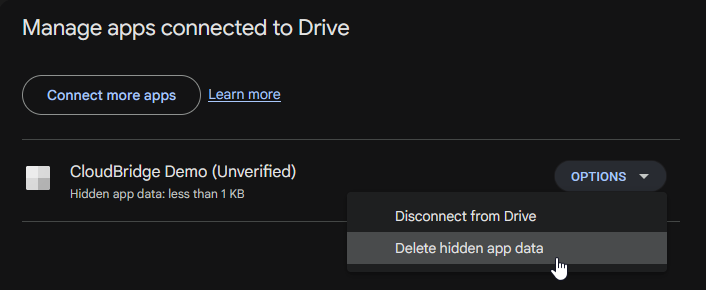
The App Data folder is not shown to users. A user can only see the amount of space it takes up by going to drive.google.com and navigating to Settings » Manage apps.
Files and folders do not need unique names in Google Drive, so there can be duplicates.
Folders in Google Drive are just files, but with the mimetype application/vnd.google-apps.folder.
Google Drive doesn't have the concept of paths. Instead, every file has a list of "parent file IDs". In the past, there could be multiple, but now every file can have just one parent.
To offer a unified API, CloudBridge still builds a path for Drive files. It will contain
the parent file ID and filename. For example, a nested folder could look like
/A2vXis2oKtcHO/9xZDTanHiFcgg/ and a file inside a folder could be
/9xZDTanHiFcgg/promotion.txt.
Passing in a deeper path on a file (for example /id1/id2/file.txt) has no effect, as
only the last part (id2) is set as a parent to the file/folder.
Registration in Cloud Console
Info
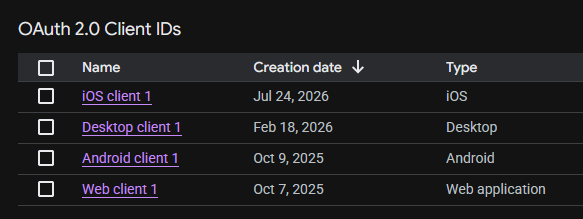
Every platform needs to be registered in the Google Cloud Console as "OAuth 2.0 Client ID" with the correct type (e.g., iOS, Android, Web, Desktop).
Authenticating
Google no longer supports custom-scheme redirects on Android, so the library has to use Google
Identity Services instead. This happens automatically by using GoogleDriveAuthenticator wrapper:
val googleDriveAuthenticator = GoogleDriveAuthenticator(
    activity = this,
    onSuccess = { token ->
        service.setToken(token)
        TODO("Store the token locally")
    },
    onDenied = { TODO() },
    onFailure = { error -> TODO() }
)
Securely store the token and pass it to the constructor of the service to use it.
The redirect URI scheme (com.example.app) needs to match the one defined in your app's
Info.plist.
service.authenticate(
    clientId = "yourClientId",
    redirectUri = "com.example.app:/cloudbridge-auth" // change to your app
)?.let { token ->
    service.setToken(token)
    TODO("Store the token locally")
}
Note that Google Drive requires a secret on desktop. This is provided in the Google Drive API console when you create a desktop client.
val authServer = LocalAuthenticationServer()

// Build auth URL and open it in the browser
val url = service.authenticate(
    authServer = authServer,
    clientId = "yourClientId",
    clientSecret = "yourSecret",
    onSuccess = { token ->
        service.setToken(token)
        TODO("Store the token locally")
    }
)
openBrowser(url)
Google Drive does not support PKCE flow on web, only implicit grant. This means the token cannot be refreshed when it expires and the user needs to re-authenticate.
See https://developers.google.com/identity/protocols/oauth2/javascript-implicit-flow.
// Always call this:
val token = service.completeAuthentication()
if (token != null) {
    service.setToken(token)
}

// When user wants to authenticate:
val uri = service.authenticate(
    clientId = "yourClientId",
    redirectUri = "yourRedirectUri"
)
window.location.href = uri